Drawings in the DTC
Frag Orders can inject your map drawings straight into the DTC (Data Transfer Cartridge) files embedded in the mission. When a pilot loads the cartridge in-cockpit, the drawings show up as Geo Lines on the aircraft's moving map — no manual point entry required.
This page covers line and polygon drawings. For the drawing tools themselves, see Drawing Tools & Symbols. To upload, inspect, and edit whole cartridges, see DTCs.
Prerequisites
Two things must be true before the DTC option appears:
- The mission already contains a DTC file. Frag Orders injects into existing cartridges in the
.miz— it does not create them. The mission author must have saved a DTC for the relevant airframe (e.g. an F-16 or F/A-18 cartridge) before uploading the.miz. - The drawing is on the Shared layer. Export targets are disabled for personal drawings, since the DTC is shared by everyone flying that airframe. See Visibility below.
If the mission has no DTC files, only the Miz Layer targets are offered.
Supported Shapes
DTC export is available for lines and polygons, which land in the cartridge's Geo Lines slots. Each line or polygon drawing occupies one geo-line slot, and a DTC file has four (L1–L4). Slots already used by the mission author are skipped, so you can add up to four FragOrders geo lines per cartridge without disturbing existing ones.
Circles, rectangles, and icon/point symbols are not exported to the DTC.
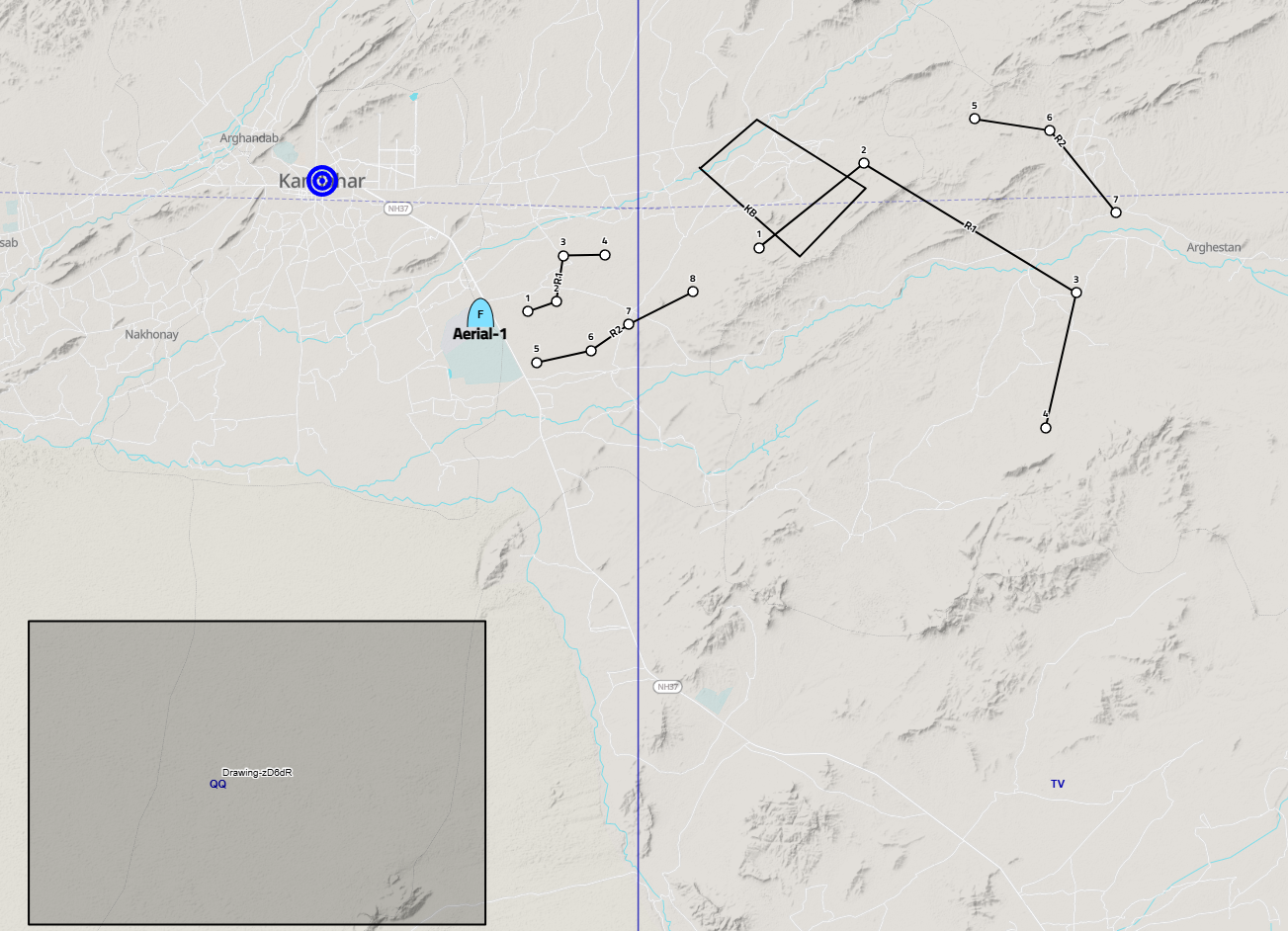
Assigning a DTC Export Target
- Draw a line or polygon on the map.
- Set its visibility to Shared (see below).
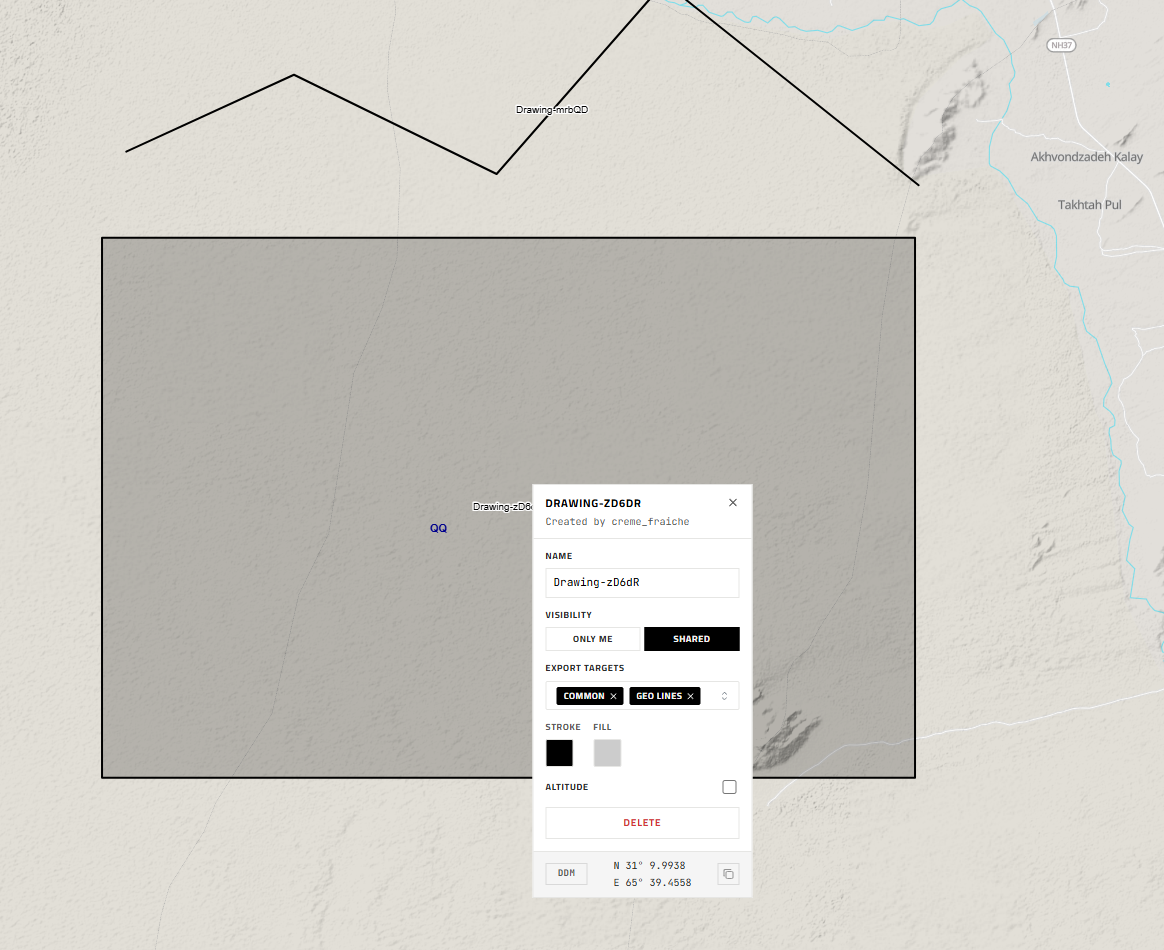
- Click the drawing to open its details popover.
- Under Export Targets, open the dropdown. DTC cartridges in the mission appear as their own groups, each offering a Geo Lines option.
- Select the cartridge(s) you want this drawing written to. A drawing can target multiple cartridges and Miz Layers at once.
Selections save immediately — there is no separate confirm step.
Shared Visibility Is Required
The Export Targets control is disabled while a drawing is set to Only me. Switch it to Shared first:
- In the drawing popover, under Visibility, click Shared.
- Sharing requires the Drawing Editor permission. If the option is greyed out, ask the frag order owner to grant it via the Drawing Access Rules.
Only the drawing's creator can change its visibility.
In the .miz File
When you download a packaged .miz from the Publish page, every shared line and polygon with a DTC target is appended to the matching cartridge's Geo Lines. The drawing's label is written as the note on the first point of each line, and altitude (if set) is carried through in feet.
As with all packaging, the original .miz you uploaded is never modified — the injection only happens in the downloaded copy.
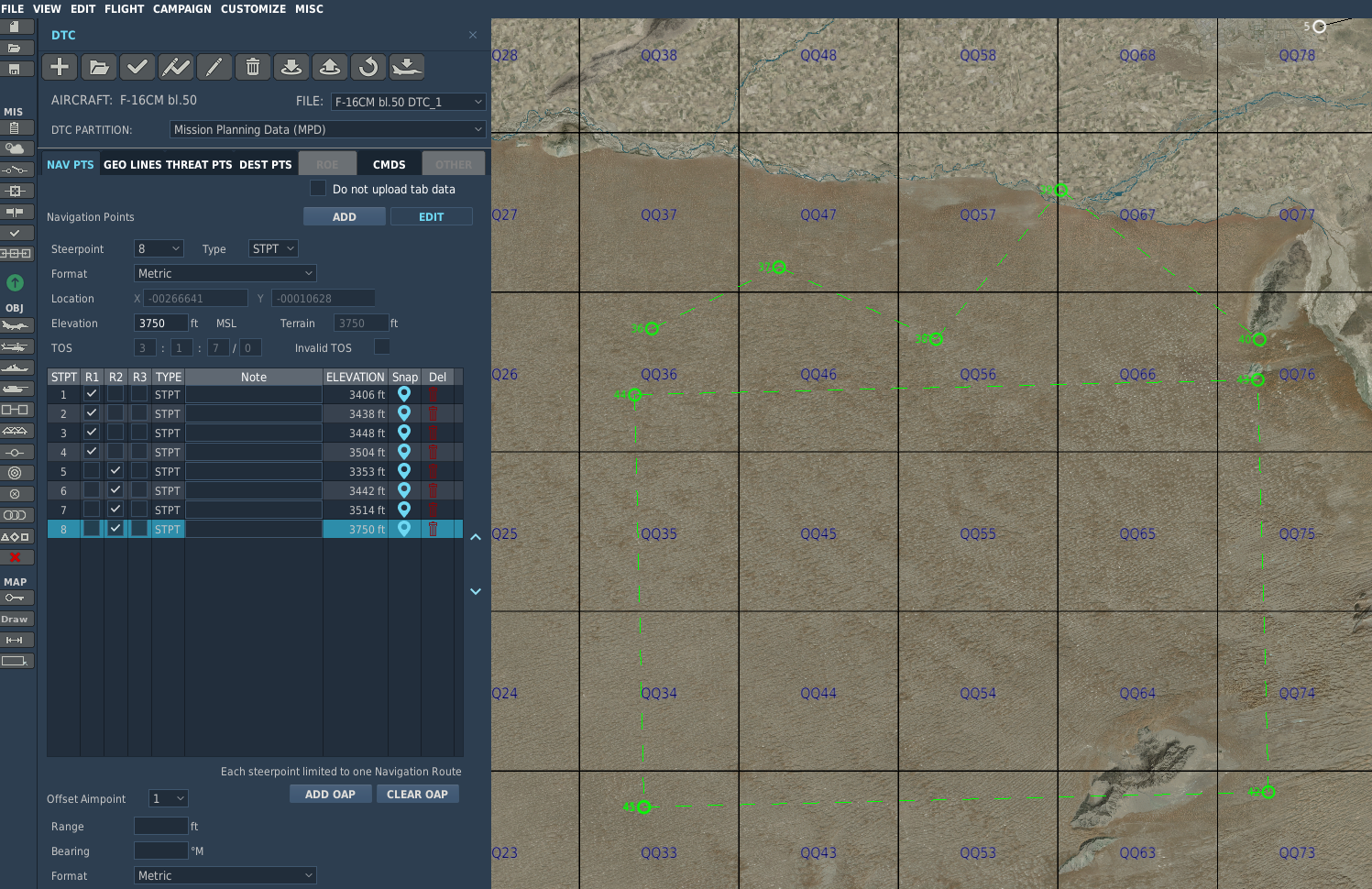
DTC Geo Lines are distinct from the mission's F10-map drawing layers. If you want a shape to appear both on the F10 map and in the cartridge, assign it a Miz Layer target (Common, Author, Blue, or Red) and a DTC target.
Only four geo-line slots (L1–L4) exist per cartridge. If existing geo lines plus your FragOrders drawings exceed four, the extra drawings are skipped during packaging.