Radio Presets & Comms Plan
Frag Orders lets mission creators build a master comms plan that gets applied to each aircraft when the .miz is downloaded. Pilots load into the mission with their radios pre-tuned — no typing frequencies by hand.
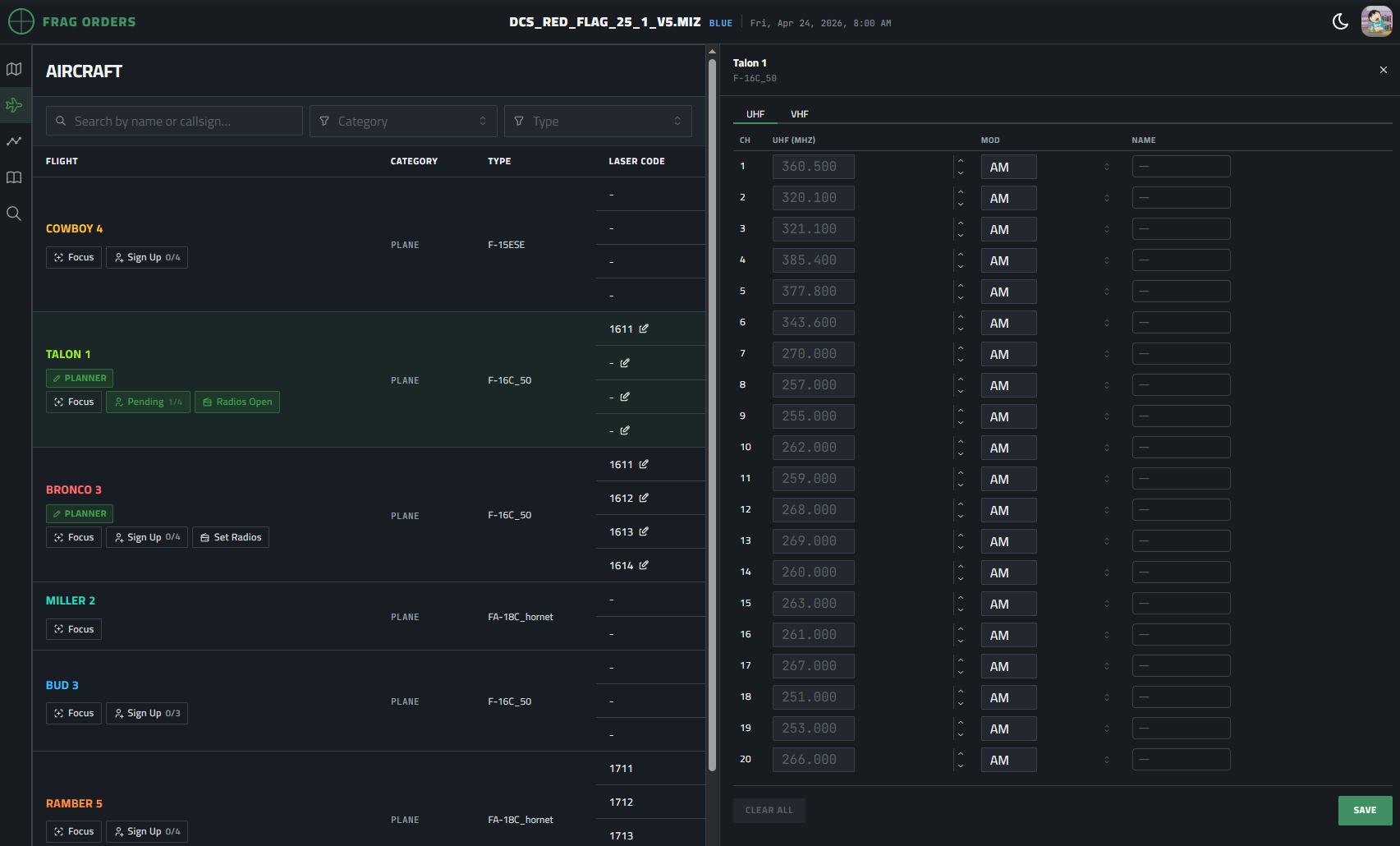
Setting Presets
Click Set Radios on any flight in the Aircraft roster to open the radio preset editor. The panel shows UHF and VHF tabs with up to 20 channels each. For each channel you can set:
- Frequency (MHz) — pre-populated from the
.mizfile if the mission already has presets defined - Modulation — AM or FM
- Name — an optional label for the channel (e.g.
STRIKE,GUARD,AWACS)
Hit Save when done. Clear All wipes the presets for that radio back to empty.
How Frequencies Are Applied
Each DCS module has a different set of physical radios, so Frag Orders uses a best-effort mapping:
- UHF presets are applied to the first UHF-capable radio found on the aircraft
- VHF presets are applied to the first VHF-only radio found
- Modules with a V/UHF radio (like the ARC-210) receive UHF presets on their first radio and VHF presets on their second
A few practical examples:
- F/A-18C Hornet — two ARC-210 V/UHF radios, so UHF goes to the left radio and VHF to the right
- F-15E / F-14 — one UHF and one V/UHF, mapped accordingly
- F-16C Viper — separate UHF and VHF radios; V/UHF column does not apply
Only AM frequencies are supported at this time. Frag Orders does not validate frequencies against module-specific limits.
Planner Radio Overrides
Planners assigned to a flight can open the radio preset editor for their own group and set frequencies independently. This is useful when individual flights need different presets from the coalition-wide comms plan — for example, a JTAC flight using a separate net.
When a planner has the radio editor open, the flight row shows a Radios Open badge so other editors can see it is actively being edited.