Timeline
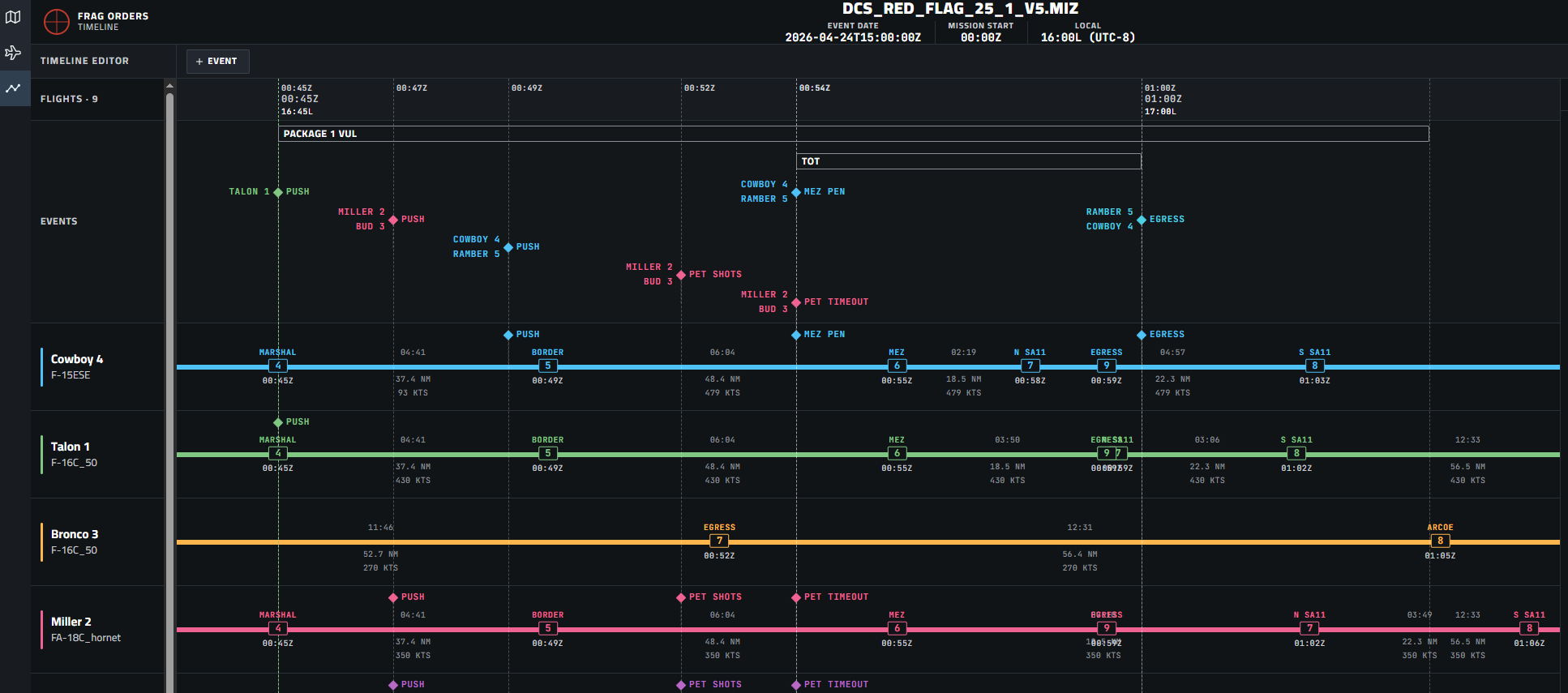
The Timeline Editor gives you a visual, Gantt-style view of the entire package — every flight's route laid out on a shared time axis so you can see how the package deconflicts and where events line up across flights.
Package Coordination
In a multi-flight package, timing is everything. SEAD needs to be on the MEZ before strikers arrive. CAP needs to be on station before the package pushes. Without a shared visual reference, coordinators are stuck cross-referencing individual flight plans on spreadsheets and hoping the math lines up.
The timeline collapses all of that into a single view. You can immediately see:
- Whether your SEAD flight's MEZ penetration precedes the strikers' TOT
- Whether all flights clear the MEZ before the VUL window closes
- Whether anyone's egress timing conflicts with another package
- Which flights share the same push time and whether that creates congestion
- Whether a flight's planned speed is achievable given the leg distance and required TOT
This is the difference between briefing a plan that looks good on paper and briefing a plan you can actually defend tactically.
Reading the Timeline
The time axis runs left to right in Zulu time. Each flight occupies its own row showing a colored bar for its active time, numbered waypoint markers placed at their calculated TOT, and leg data — distance (NM) and planned speed (KTS) — below the bar.
The leg speeds give you an immediate sanity check. If a flight needs 520 KTS to make their TOT from a given waypoint, something in the plan needs to change — either the waypoint timing, the routing, or the briefed airspeed.
At the top, the Events section shows coalition-wide and per-flight markers on a shared row, so you can see the full sequence of key package events — pushes, MEZ penetrations, PET windows, egress — without scanning each flight row individually. Package blocks (e.g. VUL windows) span the full width of all rows, making it immediately clear which flights are inside or outside the window.
Adding Events
Events are the primary coordination tool in the timeline. Click + Event in the top-left to open the Add Event dialog.
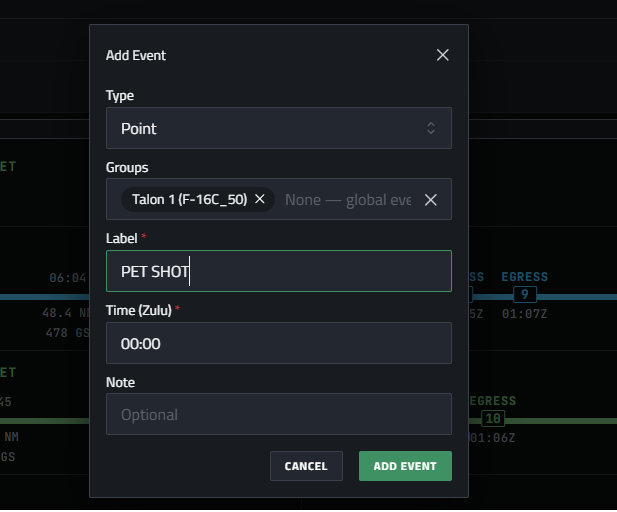
There are four event types:
| Type | Description |
|---|---|
| Point | A single moment in time — push times, TOT, MEZ penetration, egress |
| Duration | A time block with a start and end — VUL windows, PET restrictions, tanker tracks |
| Aerial Refuel | A refueling window tied to a specific flight |
| Loiter | A holding pattern window tied to a specific flight |
Each event has a Label (shown on the timeline marker), a Time or time range in Zulu, and an optional Note. You can assign an event to one or more specific flights, or leave it unassigned to make it a global event visible to the whole coalition in the shared Events row.
A well-built timeline reads like a synchronized package brief: push times staggered by role, MEZ penetration events marking when each flight crosses into threat rings, PET windows constraining when shots can be taken, and egress events ensuring everyone is off target before the window closes. Pilots briefing from the publish can see exactly where they fit in the package without needing a separate briefing document.