Overview
A Frag Order is the container for a DCS mission in Frag Orders. It holds your .miz file, tracks publishes for each coalition, and gives you a central place to manage access, planning, signups, and kneeboards.
The Frag Orders List
When you log in, you land on the Frag Orders list. Each row shows the mission name alongside when it was last updated and when it was created. Click any row to open that Frag Order.
To create a new one, click Create Frag Order in the top right.
Creating a Frag Order
The create form has three fields:
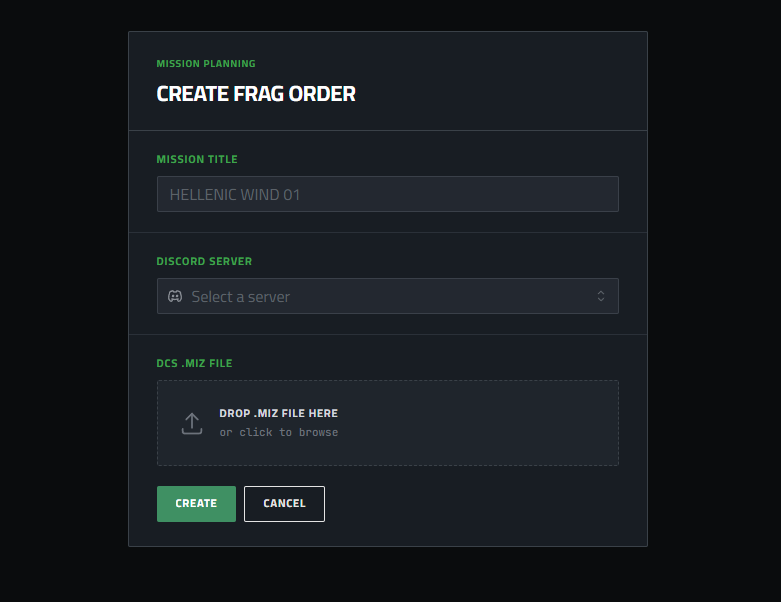
- Mission Title — the display name shown to pilots in the roster. Defaults to the filename if left blank.
- Discord Server — the server whose members will be able to request access. You must have the Frag Orders bot installed in that server.
- DCS .miz File — drag and drop your mission file, or click to browse.
Once you select a .miz, Frag Orders parses it immediately and shows a summary of the groups found before you confirm.
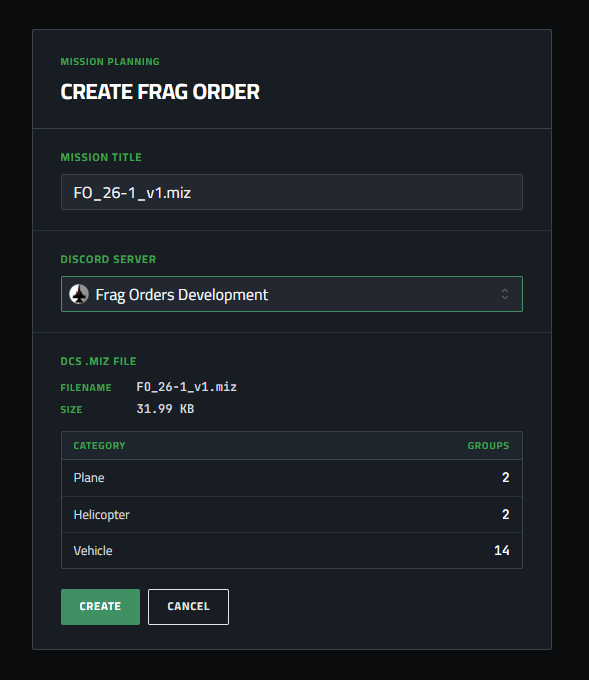
Click Create and you'll be taken directly to the new Frag Order's detail page.
The Frag Order Detail Page
The detail page is the hub for everything related to a single mission.
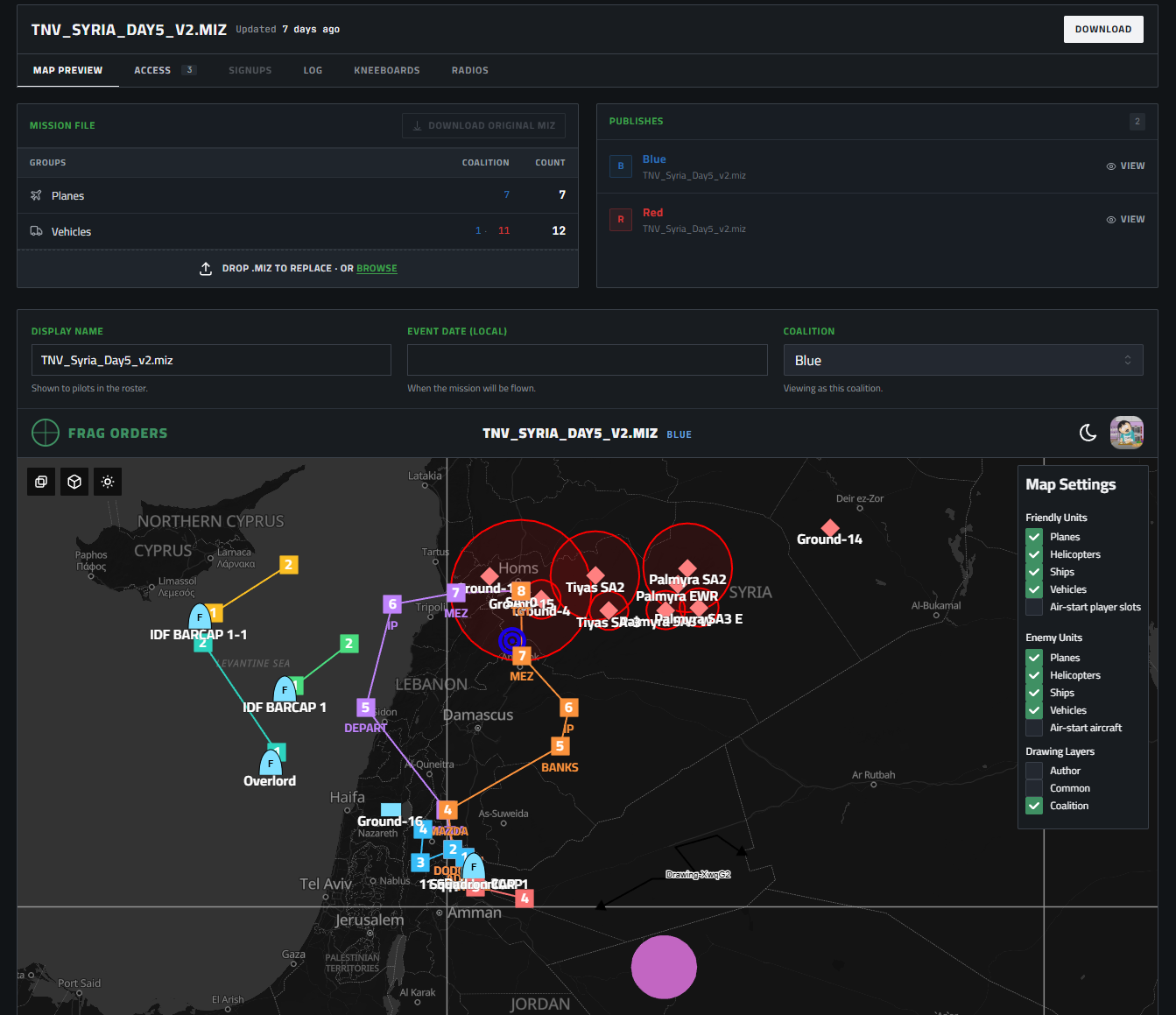
Mission File Card
Shows the groups parsed from your .miz, broken down by type (Planes, Helicopters, Vehicles, Ships) and coalition. You can drag and drop a new .miz here at any time to replace the mission file — useful when the mission creator pushes an update.
Publishes Card
Shows the publish status for each coalition (Blue, Red, Neutral). Each publish has a View button that opens the live planning workspace for that coalition. Until you create a publish, this card will show "No publishes yet."
Metadata Fields
Below the cards you can set:
- Display Name — what pilots see in the roster
- Event Date (Local) — when the mission will be flown
- Coalition — which coalition's perspective you're currently viewing on the map
Map Preview
A live map showing all parsed groups, routes, threat rings, and drawing layers for the selected coalition. The Map Settings panel on the right lets you toggle visibility of friendly units, enemy units, and drawing layers (Author, Common, Coalition).
Tabs
| Tab | Description |
|---|---|
| Map Preview | Live map of all groups and objectives (default view) |
| Access | Manage who can view, edit, or plan the Frag Order |
| Signups | View and manage pilot slot signups |
| Log | Audit trail of changes |
| Kneeboards | Configure and preview kneeboard sheets |
| Radios | View radio preset assignments across all groups |