Flight Names & Colors
By default, each flight on the roster shows the group name straight from the mission file, and its map color is assigned automatically. You can override how a flight is labeled and pick a custom color — useful when squadrons want their callsign shown instead of the raw .miz group name, or want a color that matches their kneeboard.
Overrides change the label and color used across the map, timeline, and roster. The underlying mission group name is never modified.
The Flights Tab
Open the Flights tab on the Frag Order detail page. This is the owner's editing surface: every flight in the coalition is listed with an editable Display Name and a Color picker.
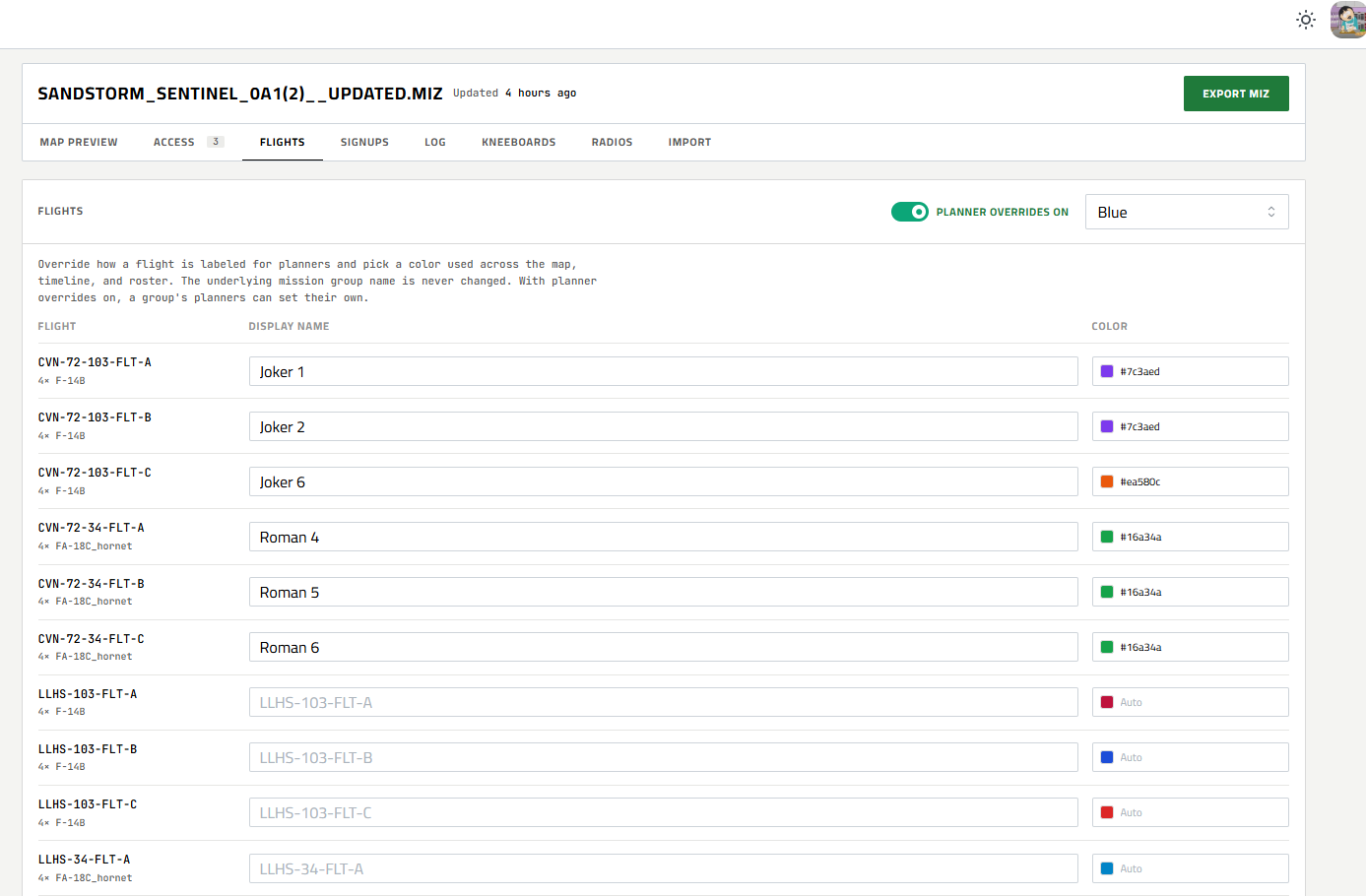
Type a name to override the label, or leave it blank to fall back to the mission group name (shown as placeholder text). Set a color, or leave it on Auto to use the automatically assigned palette color.
The coalition selector at the top right switches between Blue and Red — overrides are configured per coalition.
Planner Overrides
Next to the coalition selector is the Planner overrides switch. This toggle is owner-only — editors and planners cannot change it.
| State | Effect |
|---|---|
| Planner overrides off | Only the owner can rename flights and set colors, from the Flights tab. |
| Planner overrides on | A group's planners (and editors) can also set their own flight's name and color, directly from the roster. |
Owners can always edit names and colors regardless of the toggle. The switch only governs whether group-level planners are also allowed to.
Editing from the Roster
When planner overrides are on, anyone who can edit a group can rename it and pick its color without leaving the Aircraft roster. Each flight you can edit shows a pencil icon and a color swatch next to its label.
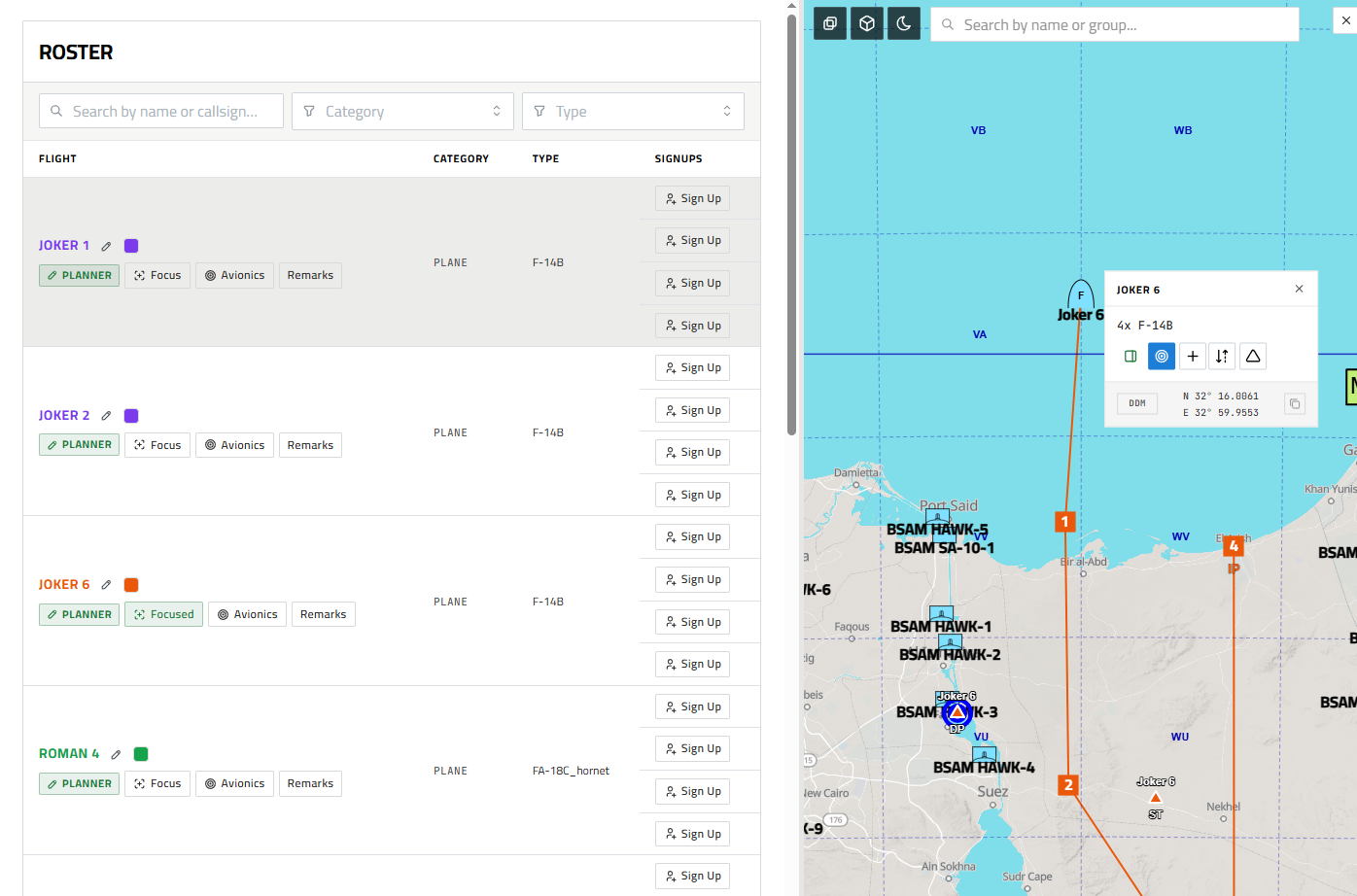
- Click the pencil to turn the label into a text input. Type the new name and press Enter or click away to save — the change commits on blur and the roster refreshes automatically. Press Escape to cancel, or clear the field to remove the override.
- Click the color swatch to open the picker and choose a color. Pick Auto to return the flight to its automatically assigned color.
Renames and colors are stored on the publish, not the mission file. Re-importing or updating the mission keeps your overrides intact, and they appear for every viewer of the Frag Order.