Managing Access
The Access tab controls who can see and interact with your Frag Order. Access is configured per coalition — Blue and Red each have their own independent set of rules.
Discord Server
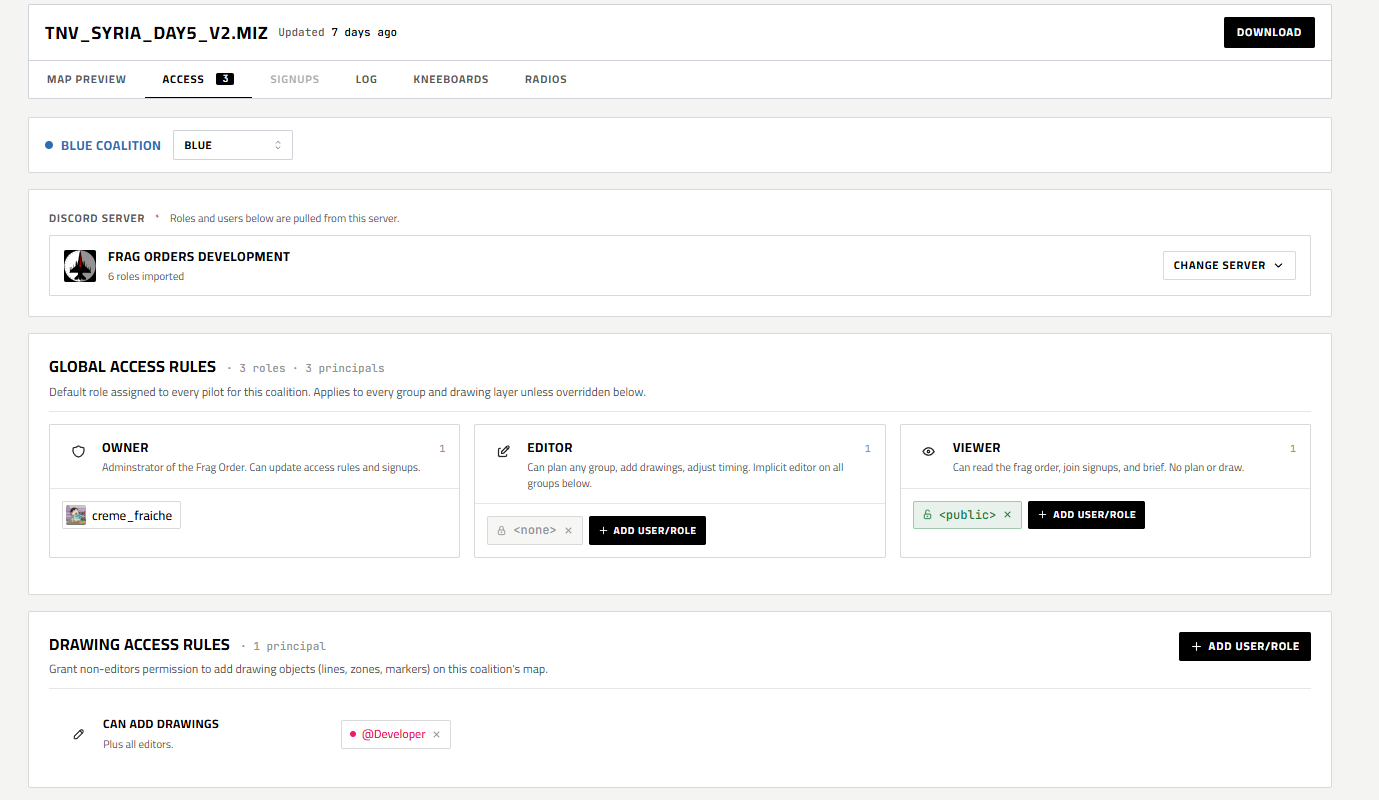
At the top of the Access tab you'll see which Discord server is linked to this Frag Order. Roles and users available for assignment are pulled from this server. Click Change Server to link a different one.
Global Access Rules
Global rules set the default role for every pilot in the coalition. There are three roles:
| Role | Description |
|---|---|
| Owner | Full control — can update access rules and signups |
| Editor | Can plan any group, add drawings, and adjust timing. Implicitly has editor access to all groups |
| Viewer | Can read the Frag Order, join signups, and brief. Cannot plan or draw |

Click + Add User/Role in any column to assign a Discord user or role. You can assign individual users by name or entire Discord roles (e.g. @Test Blue) so that everyone with that role automatically gets access.
The special <public> principal makes the Frag Order visible to anyone with the link, without requiring Discord login.
Collaborators
The Owner card shows the Frag Order's owner alongside any collaborators — additional Discord users who can co-administer the Frag Order. Click + Add User/Role on the Owner card to add one; each collaborator appears as a chip you can remove.
A collaborator can do everything the owner can — manage access rules, delegate planners, edit the plan, upload a new mission, and adjust signups — except:
- Delete the Frag Order
- Change the linked Discord server
- Add or remove other collaborators
Only the owner can do those three things. Frag Orders you've been added to as a collaborator appear under the Shared with me tab on your Frag Orders list.
Adding collaborators requires a premium subscription.
Drawing Access Rules
Grants non-editors the ability to add drawing objects (lines, zones, markers) to the coalition map. Useful for giving JTAC or GCI operators drawing permissions without full editor rights.
Group Access Rules
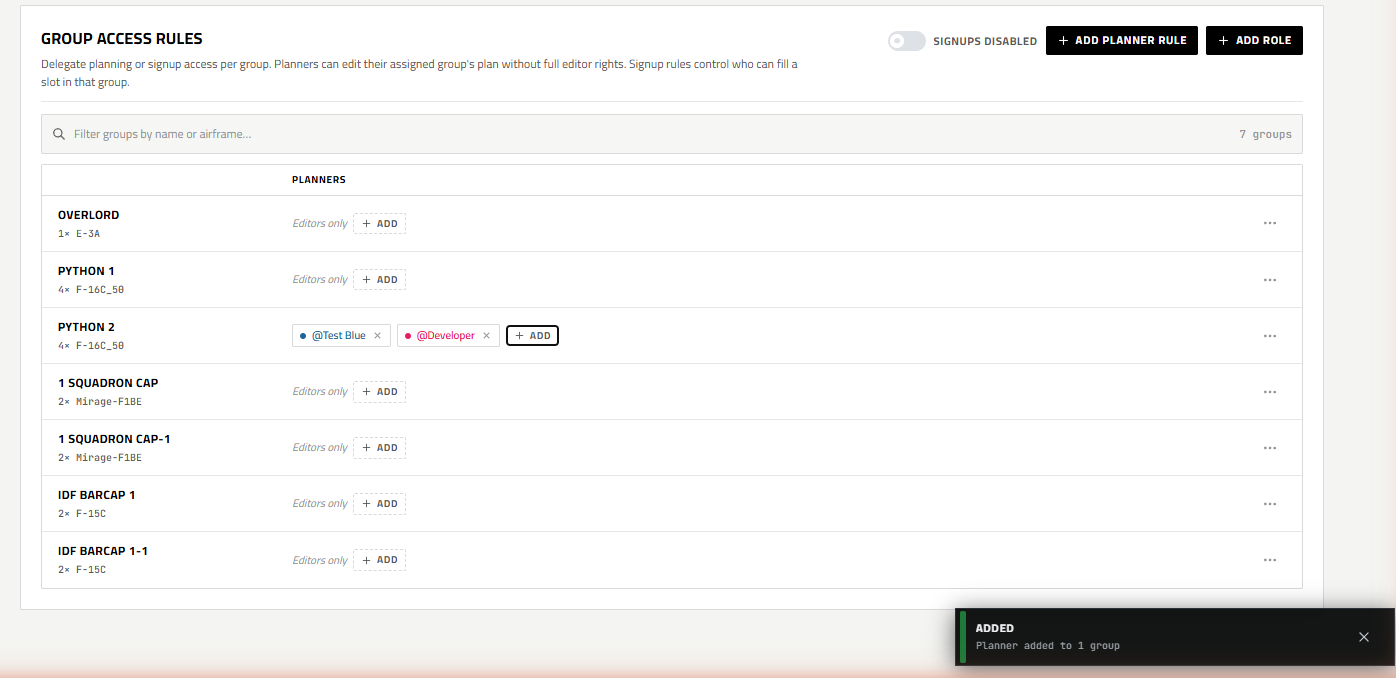
Delegate planning access to specific groups without granting full editor rights across the coalition.
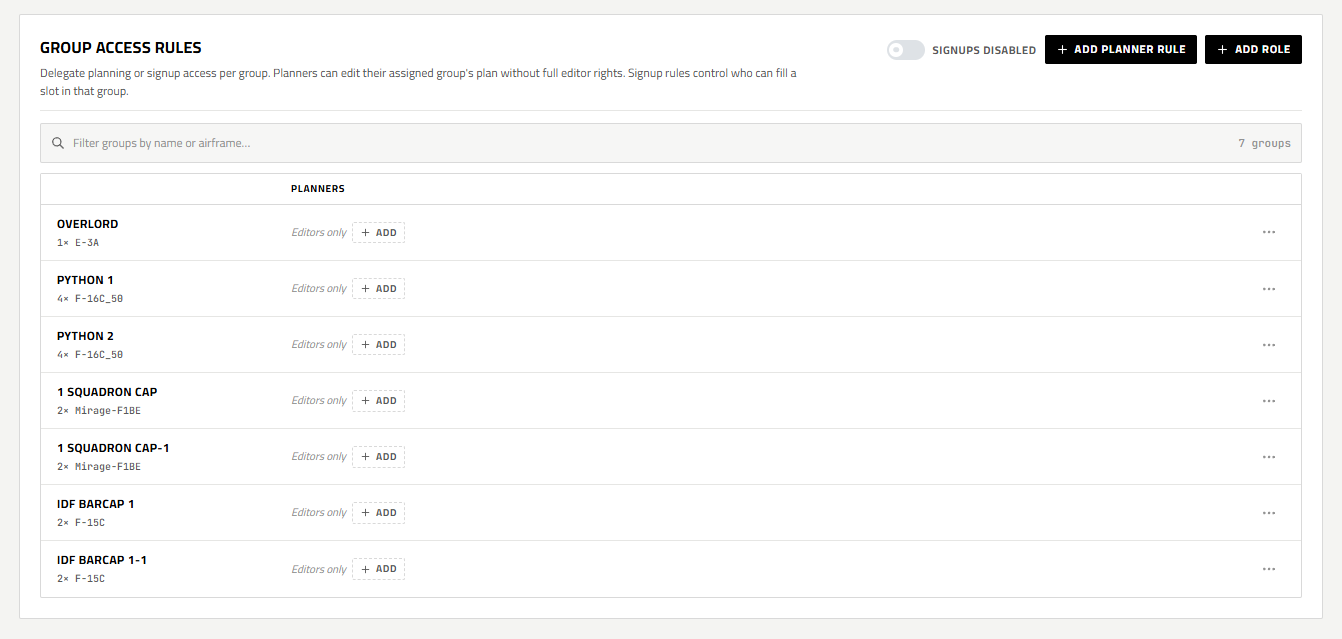
Each flight group in the mission is listed here. By default, only Editors can plan a group. Click + Add next to a group to assign a Planner — a user or role that can edit waypoints, laser codes, and radio presets for that group only.
You can assign as many users and roles as you want to a single group. This is a common setup for large events where, for example, both a flight lead and a squadron role need planning access to the same package.
You can also use + Add Planner Rule to assign a user or role to multiple groups at once:
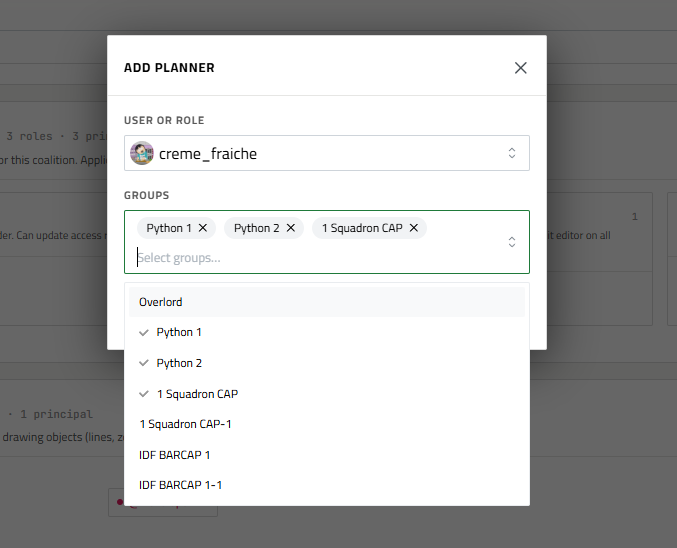
Select the user or role, then pick which groups they should have planning access to.
Signups Toggle
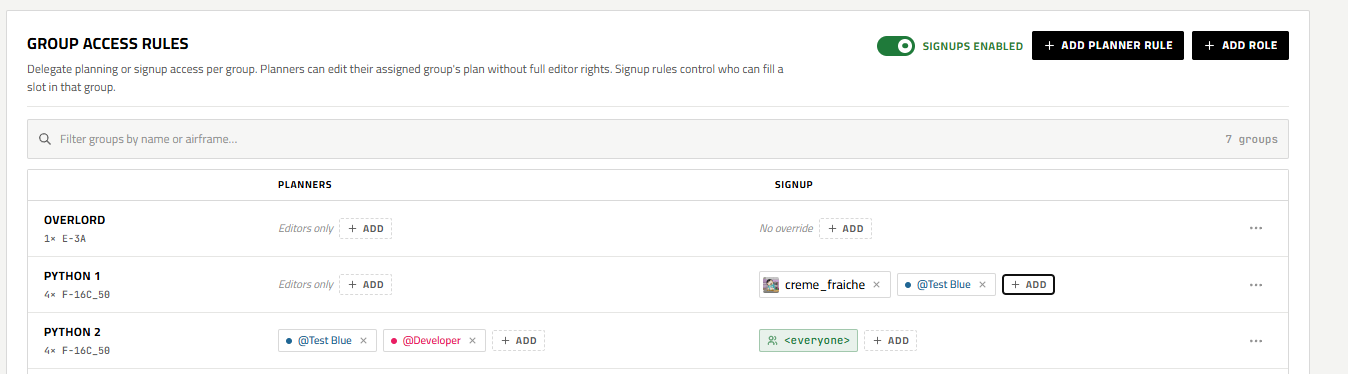
The Signups Disabled / Enabled toggle at the top of the Group Access Rules section controls whether pilots can sign up for slots in this coalition's publish. When disabled, the Signups tab will be hidden from viewers.
When signups are enabled, a Signup column appears next to each group. This controls who can fill a slot in that group's roster — independent of who can plan it. By default there is no override and the global access rules apply. You can assign specific users, roles, or <everyone> to open a group's signups to anyone.