Drawing Library
The drawing library lets you save a mission's map drawings and reuse them in another mission. Recurring annotations — standard SAM rings, ingress corridors, kill boxes, CAP stations — can be drawn once, saved as a set, and imported into future missions on the same theater.
Saving a Set
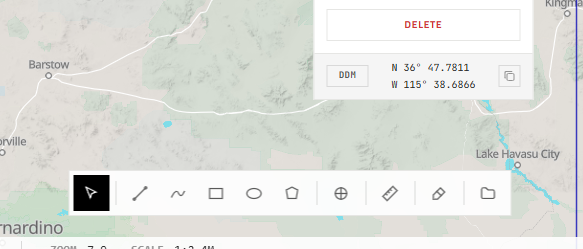
Open the library button at the right end of the drawing toolbar at the bottom of the map.
Give the set a name and save it.
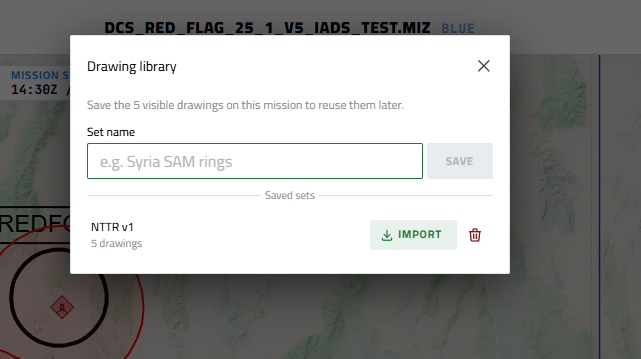
Saving captures every drawing currently visible to you on the mission — both your personal drawings and the shared drawings for the coalition. Each saved set is tied to the mission's theater, because drawing coordinates are theater-specific.
Saving to a name that already exists replaces that set's contents with the current drawings.
Importing a Set
From the library on any mission, pick a saved set and import it. The library only offers sets that match the current mission's theater.
Imported drawings are added to your personal layer, so they're visible to you without changing the coalition's shared drawings and without needing shared-drawing permission.
Collision Detection
Imports are partial. Before adding a drawing, the library checks whether an identical drawing is already on the mission — added earlier by you or by anyone else — and skips it. Only genuinely new drawings are added.
This means you can safely:
- Re-import the same set without creating duplicates.
- Import a set that partially overlaps drawings already present — only the new shapes come in.
After an import you'll see how many drawings were added and how many were skipped because they were already there.
Two drawings are treated as identical when their shape and styling match: label, geometry, points, radius, altitude, arrows, stroke, and fill. Export-target settings are ignored for this comparison. Change any of the matched properties — for example, nudge a point or rename the drawing — and it's treated as a new drawing.
Managing Sets
The Drawing Sets item in the left navigation opens a page listing all of your saved sets. Select a set to see a read-only map preview of its drawings on the correct theater.
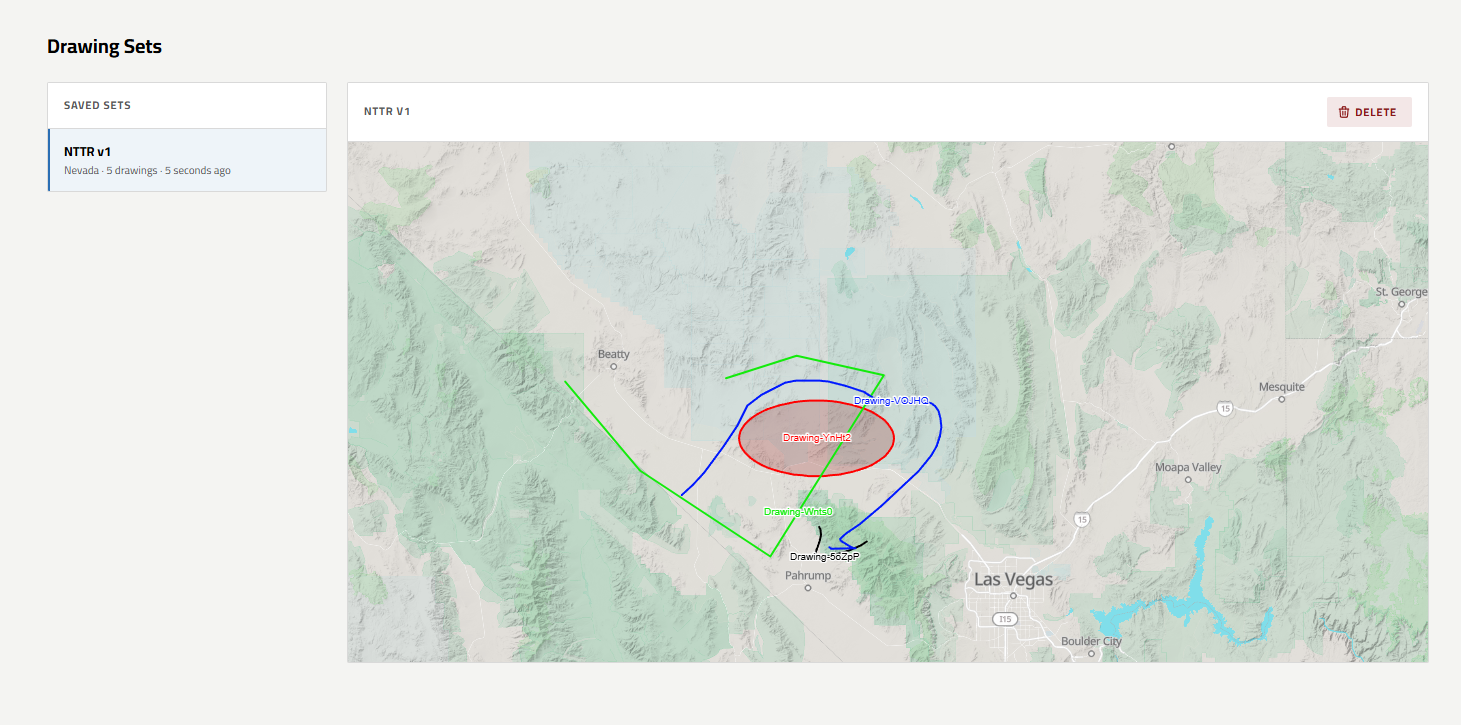
From here you can delete a set. Deleting a set permanently removes it and its saved drawings from your library. Drawings you've already imported into missions are not affected.
Notes
- Sets are private to you — each user has their own library.
- Sets are theater-scoped. A set saved on Syria cannot be imported into a Caucasus mission; the coordinates would be meaningless.
- Saving reads FragOrders drawings, not drawings baked into the original
.mizmission file.